Instagram has continuously evolved, transforming from a simple photo-sharing app into a comprehensive social media hub. One of its most beloved additions in recent years has been the introduction of Instagram Chat Themes. These vibrant, customizable backgrounds and color schemes allow users to personalize their direct messages, adding a unique touch of personality and flair to every conversation. From subtle gradients to dynamic seasonal designs, chat themes make interacting with friends and family more engaging and visually appealing. However, it can be incredibly frustrating when you’re eager to express yourself with a new theme, only to find that your Instagram Chat Themes aren't working as expected. If you're encountering this common glitch in 2023, don't worry! This comprehensive troubleshooting guide is here to walk you through the most effective solutions.
Understanding Instagram Chat Themes: A Quick Overview
Before diving into troubleshooting, it’s helpful to understand how Instagram Chat Themes typically work. Instagram offers a diverse library of themes, ranging from simple color gradients to elaborate designs like "Love," "Ocean," "Pride," "Autumn," and "Astrology." Each theme changes the background, message bubbles, and even the send button's appearance, creating a distinct visual experience for each chat. This level of customization allows you to tailor your conversations to your mood, the person you're chatting with, or even special occasions.
Normally, setting a chat theme is straightforward:
- Open a specific chat in your Instagram DMs.
- Tap the information "i" icon in the top right corner (on iOS) or the chat participant's name (on Android).
- Under the "Chat Settings" section, you'll see the "Theme" option at the top. Tap on it.
- Browse through the available themes and gradients. Tap on your desired theme to apply it.
Alternatively, some users can also access themes by long-pressing on the background of the chat itself, which may bring up a quick menu including the theme option. Once a theme is set, both participants in the chat will see it, enhancing the shared experience. For a deeper dive into all the stylistic possibilities, check out our guide on Unlock Your Chat Style: Explore Instagram Chat Themes & Options.
Why Your Instagram Chat Themes Might Not Be Working
When Instagram Chat Themes stop responding, it can often be attributed to a few common culprits. These issues aren't usually severe and are often easily remedied. Understanding the potential causes can help you diagnose and fix the problem more efficiently:
- Outdated App Version: New features, including theme updates or bug fixes for existing themes, are often tied to the latest version of the Instagram app.
- Background App Glitches: An app running in the background for too long can sometimes encounter minor processing errors that affect specific features.
- Corrupted Cache Data: Over time, temporary files (cache) can become corrupted or overloaded, leading to app instability and feature malfunction.
- Temporary Account Issues: Sometimes, your Instagram session or account data might experience a temporary glitch that prevents certain features from loading correctly.
- Server-Side Problems: Less commonly, the issue might not be with your app or device, but with Instagram's servers themselves.
Your Comprehensive Troubleshooting Steps for Instagram Chat Themes
Now that we understand the common reasons, let's get into the actionable solutions. Follow these methods step-by-step to get your Instagram Chat Themes working again.
1. Force Close and Restart the Instagram App
This is often the quickest and simplest fix for many app-related issues. Forcing the app to close completely clears its active session from your device's RAM, effectively giving it a fresh start. This can resolve minor temporary glitches that might be preventing themes from loading.
- On iPhone (iOS):
- Swipe up from the bottom of your screen (or double-tap the Home button on older models) to open the App Switcher.
- Find the Instagram app preview.
- Swipe it upwards and off the screen to close it completely.
- On Android:
- Swipe up from the bottom of your screen and hold (or tap the recent apps button, usually a square icon). This opens your recent apps.
- Locate the Instagram app.
- Swipe it to the left or right, or tap the "X" button to close it.
Wait a few moments, then reopen Instagram and check if the chat themes are now accessible and working.
2. Update Your Instagram App to the Latest Version
Keeping your apps updated is crucial for performance, security, and accessing new features. Instagram frequently rolls out updates that include bug fixes, performance enhancements, and new functionalities, including new chat themes or fixes for existing ones. If your app is outdated, you might be missing critical patches.
- Open your device's app store:
- For Android users, open the Google Play Store.
- For iPhone users, open the Apple App Store.
- In the search bar, type "Instagram" and select the app from the results.
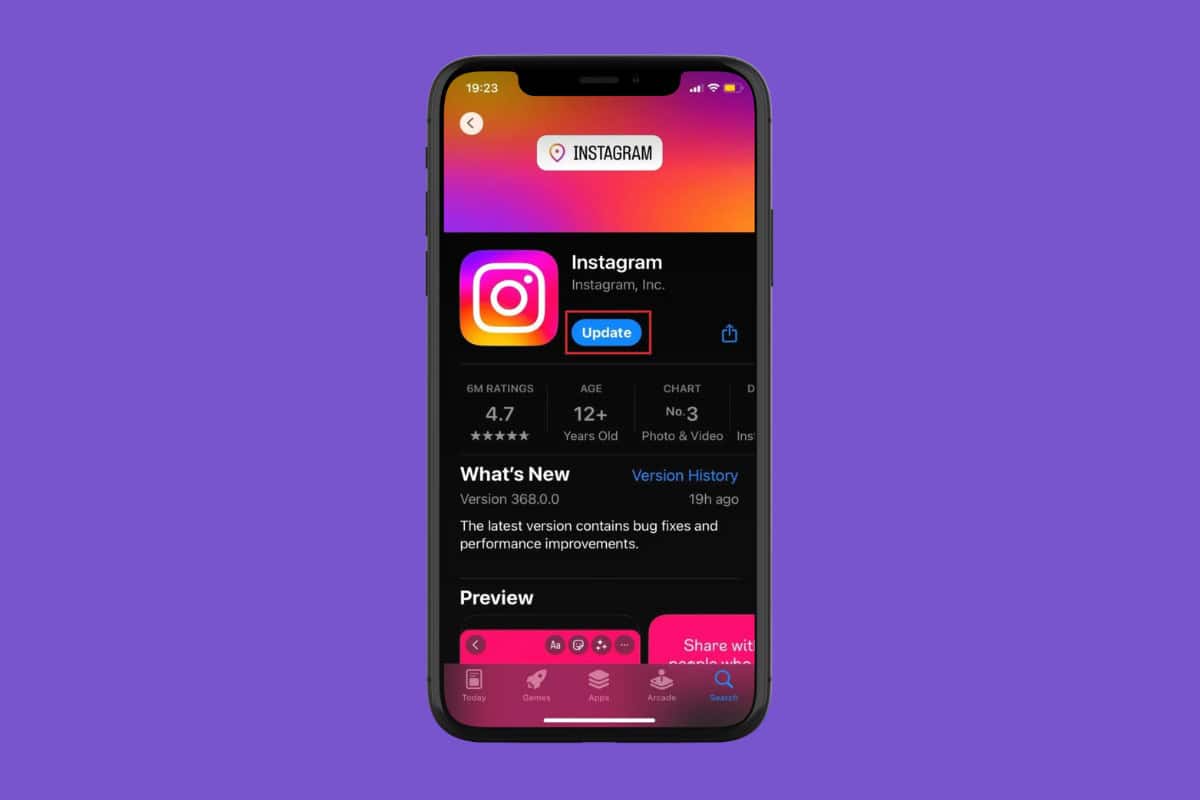
- If an update is available, you will see an "Update" button. Tap on it. If you see "Open," your app is already up to date.
- Once the update is complete, reopen Instagram and navigate to your chats to see if the themes are working. This step is particularly important for gaining access to the latest theme options and bug fixes for the Instagram Chat Themes & Options.
3. Log Out and Log Back Into Your Instagram Account
Logging out and then back into your account can often refresh your session and resolve any temporary authentication or data sync issues that might be preventing features from loading. This is akin to a soft reset for your account's connection to Instagram's servers.
- Open the Instagram app and go to your profile page (tap your profile picture in the bottom right corner).
- Tap the hamburger icon (three horizontal lines) in the top right corner to open the menu.
- Scroll down and select "Settings and privacy."
- Scroll all the way down to the bottom and tap "Log out [your username]."
- Confirm your decision by tapping "Log out" on the prompt.
- Once logged out, log back in using your credentials.
Check your chat themes after logging back in.
4. Clear Instagram's Cache (Android Specific)
Over time, the Instagram app accumulates temporary data (cache) to speed up loading times. However, this cache can sometimes become corrupted or excessive, leading to various app issues. Clearing it can often resolve these problems by forcing the app to rebuild fresh, clean data.
Note: This method is primarily for Android users. iOS devices do not offer a direct option to clear an app's cache without reinstalling the app.
- Go to your phone's Settings app.
- Tap on "Apps" or "Apps & notifications" (wording may vary slightly depending on your Android version).
- Scroll down and find "Instagram" in the list of applications, then tap on it.
- Tap on "Storage" or "Storage & cache."
- You will see options for "Clear Cache" and "Clear Storage" (or "Clear Data"). Tap on "Clear Cache."
- (Optional but recommended) Restart your phone after clearing the cache.
Reopen Instagram and test your chat themes. If "Clear Cache" doesn't work, you could try "Clear Storage" / "Clear Data," but be aware this will log you out of Instagram and delete all app data, essentially making it a fresh install without having to uninstall it first.
5. Reinstall the Instagram App (iOS Users & Persistent Issues)
For iOS users, or if you're an Android user and clearing the cache didn't work, a complete reinstallation of the app can be highly effective. This ensures you have the latest version of the app with no corrupted data or files.
- On iPhone (iOS):
- Long-press the Instagram app icon on your home screen until it jiggles (or a context menu appears).
- Tap "Remove App" or the "X" icon.
- Confirm "Delete App."
- Go to the App Store, search for "Instagram," and redownload it.
- On Android:
- Long-press the Instagram app icon.
- Drag it to the "Uninstall" option that appears, or tap "Uninstall" from the context menu.
- Confirm the uninstallation.
- Go to the Google Play Store, search for "Instagram," and reinstall it.
Remember your login credentials before deleting, as you'll need to log back in after reinstallation.
Additional Troubleshooting Tips:
- Check Your Internet Connection: A stable internet connection (Wi-Fi or mobile data) is essential for Instagram features to load correctly. Try switching between Wi-Fi and mobile data to see if that resolves the issue.
- Restart Your Phone: Sometimes, the simplest solutions are the most effective. A full device restart can clear system-wide glitches that might be affecting app performance.
- Check Instagram's Server Status: Rarely, Instagram's servers might be experiencing issues. You can check websites like DownDetector or search Twitter for "Instagram down" to see if other users are reporting similar problems. If it's a server issue, you'll simply have to wait for Instagram to resolve it.
What If None of These Solutions Work?
If you've tried all the above methods and your Instagram Chat Themes are still not working, it might indicate a more specific bug affecting your account or device configuration. In such cases:
- Report the Problem to Instagram: Within the Instagram app, go to Settings and Privacy > Help > Report a Problem. Provide as much detail as possible, including screenshots if you can.
- Wait for a Future Update: Instagram is constantly updating its app. Sometimes, a bug might be widespread and require a fix in a subsequent app update.
- Check Community Forums: Look for similar issues reported by other users on online forums or Reddit. You might find a solution specific to your device or a temporary workaround.
Personalizing your digital conversations with unique Instagram Chat Themes adds a significant layer of fun and self-expression to your daily interactions. While encountering a glitch can be annoying, most issues preventing themes from working are easily solvable with a bit of systematic troubleshooting. By following the steps outlined in this 2023 guide – from restarting the app and updating your software to clearing cache and logging in again – you should be able to resolve common problems and get back to enjoying a more colorful and engaging Instagram experience. Don't let a minor technical hiccup dull your chat style; empower yourself with these fixes and keep your DMs vibrant!